
CP Live integrates with the YouTube Data API to automatically detect live and upcoming broadcasts from your YouTube channel. This guide walks you through configuring YouTube as your streaming service.
Prerequisites
Before configuring YouTube in CP Live:
- YouTube live streaming is enabled on your channel
- You have a YouTube Data API key from the Google Cloud Console
- You know your YouTube Channel ID
Getting Your YouTube API Key
- Go to the Google Cloud Console
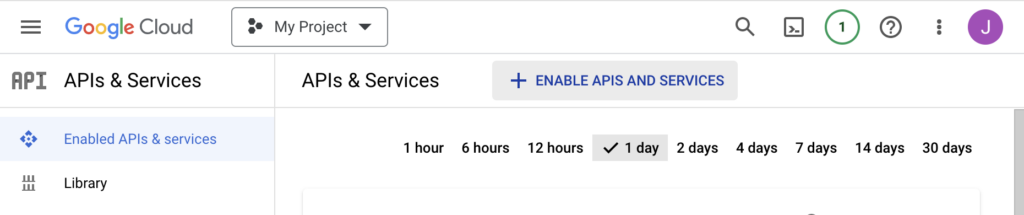
- Create a new project or select an existing one
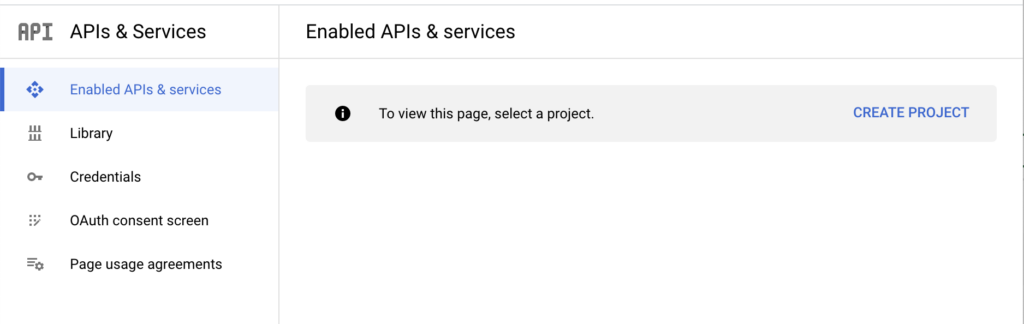
- Navigate to APIs & Services → Library
- Search for YouTube Data API v3 and enable it
- Navigate to APIs & Services → Credentials
- Click Create Credentials → API Key
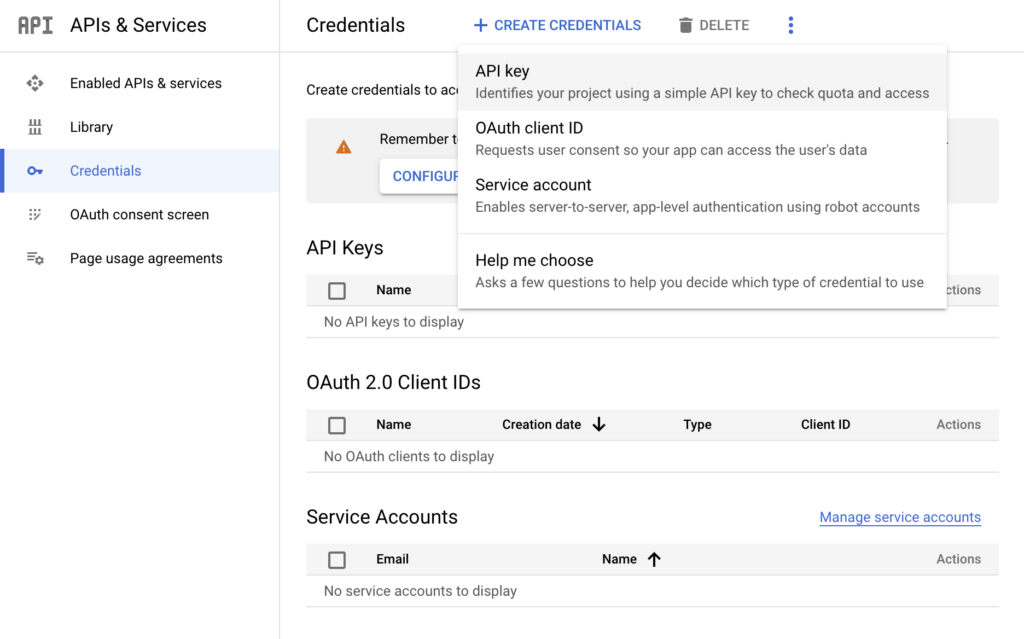
- Copy the generated API key
Restricting Your API Key
For security, restrict your API key:
- Click on the API key in the Credentials list
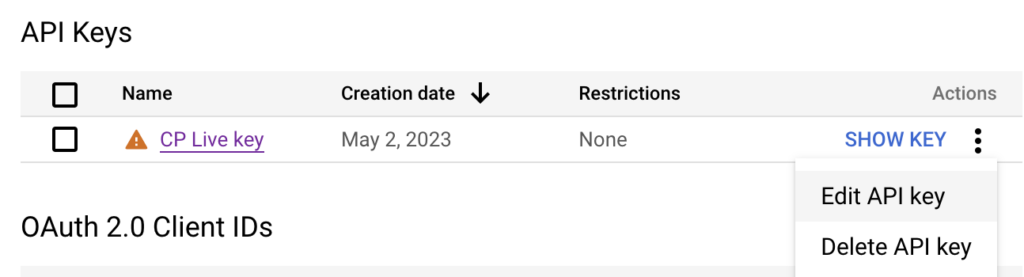
- Under API restrictions, select Restrict key
- Choose YouTube Data API v3 from the list
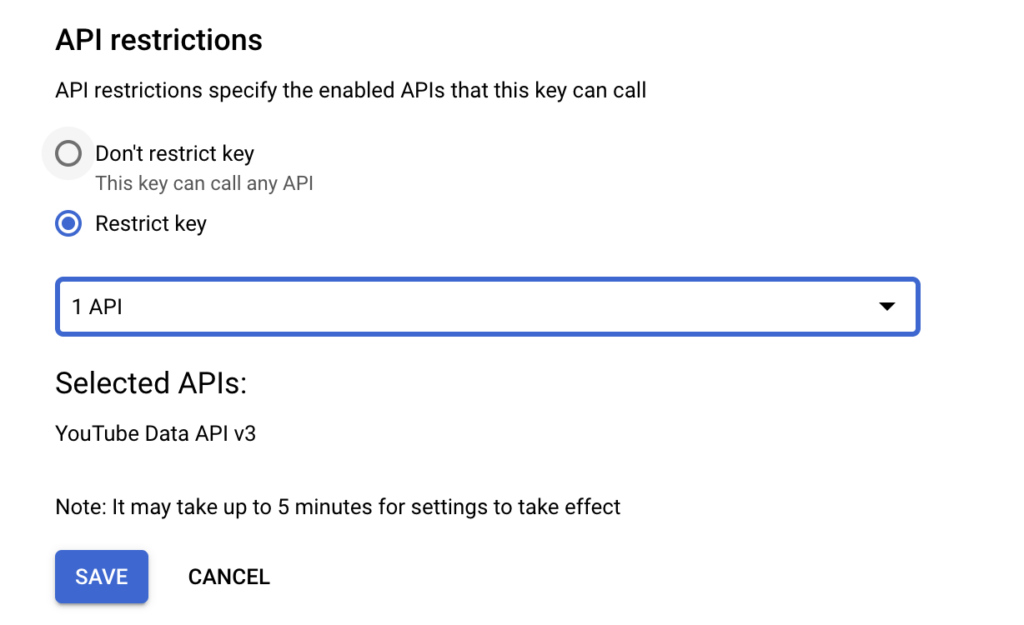
- Click Save
Finding Your Channel ID
- Go to your YouTube channel page
- Click on your profile icon and select Your channel
- Your Channel ID is in the URL:
https://www.youtube.com/channel/YOUR_CHANNEL_ID
If your channel uses a custom URL, find your Channel ID in YouTube Studio → Settings → Channel → Advanced settings.
Configuring YouTube in CP Live
- Navigate to Settings → CP Live
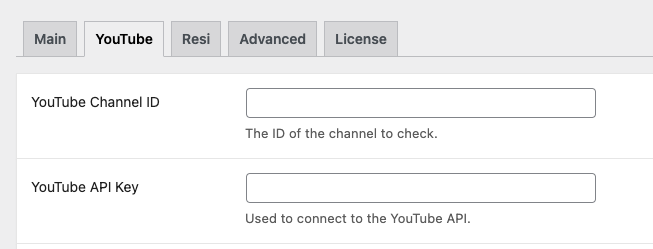
- Click the YouTube tab
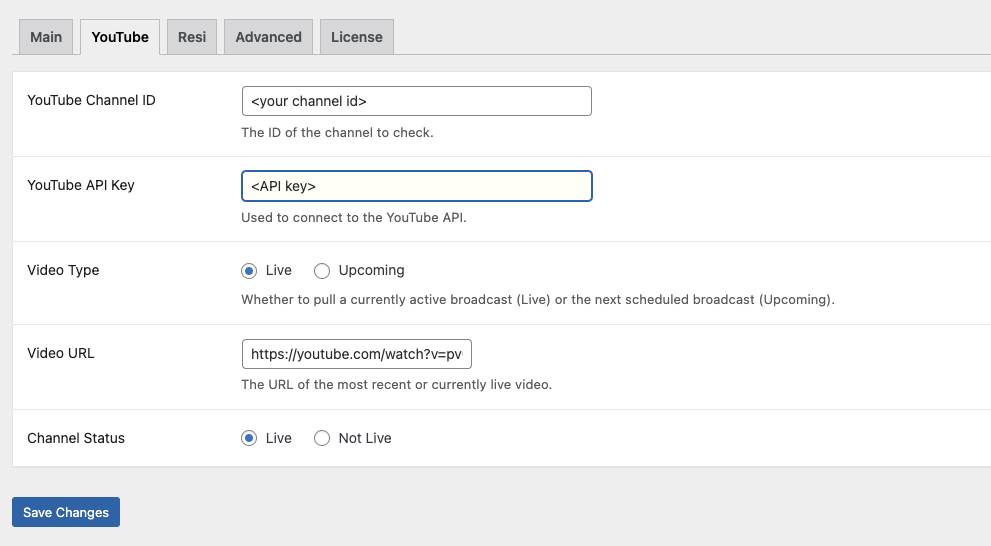
- Configure the following settings:
| Setting | Description |
|---|---|
| YouTube Channel ID | Your YouTube channel ID |
| YouTube API Key | Your YouTube Data API key |
| Video Type | Choose Live to detect currently streaming broadcasts, or Upcoming to detect the next scheduled broadcast |
| Video URL | Displays the URL of the most recent or currently live video (auto-populated) |
| Show Subscribe Button | Show or hide a YouTube subscribe button below the video embed |
- Click Save Changes
Testing Your Configuration
- Navigate to Settings → CP Live → Advanced
- Check the Force Pull checkbox
- Click Save Changes
- Return to the YouTube tab to verify the Video URL and Channel Status fields
API Quota Considerations
The YouTube Data API has a daily quota limit (default: 10,000 units). Each live stream check uses approximately 100 units. With a 2-minute check interval and a 20-minute schedule window (8 min before + 12 min after), each service consumes roughly 1,000 units per schedule.
To minimize quota usage:
- Set the check interval appropriately in Advanced Settings
- Adjust buffer times to match your typical stream start patterns
- Use the Upcoming video type if you schedule broadcasts in advance
Troubleshooting
Stream Not Detected
- Verify your API key is valid and has YouTube Data API v3 enabled
- Confirm your Channel ID is correct
- Check that your scheduled time window covers when you go live
- Use Force Pull to test detection outside of scheduled times
Subscribe Button Not Appearing
- Verify Show Subscribe Button is set to Show
- Check that your Channel ID is entered correctly
- Clear any page caches on your site
For more help, see the Troubleshooting guide.